Enriched Chargebacks
Last updated: October 29, 2026
Overview
On Astra, every chargeback is already disputed automatically, using the payment data we hold. With Enriched Chargebacks, your team can add what only your platform knows before the dispute goes to the card network: the user’s login history, the device they always use, the agreement they signed.
That’s often the evidence that proves the cardholder authorized the transfer. In our pilot, enriched chargebacks had a 14% higher win rate than unenriched ones.
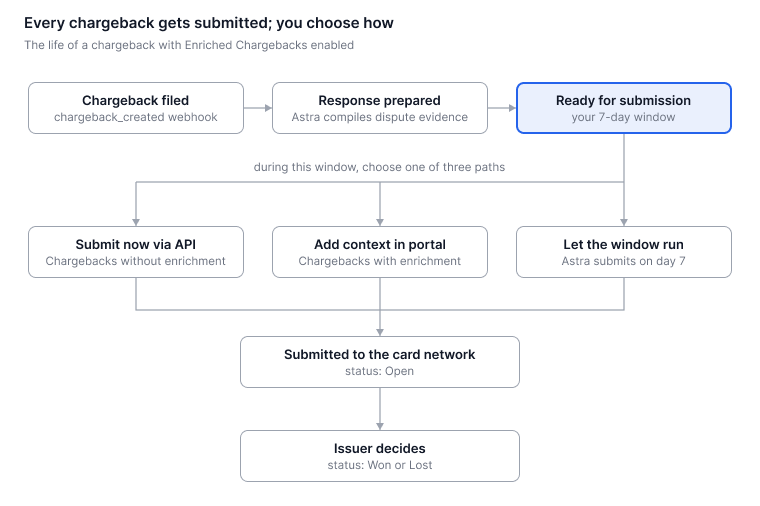
Nothing to add? Astra submits on schedule with its own evidence, so no deadline is missed.
Chargebacks get harder to manage as your program grows, and every one you lose comes straight out of revenue. That’s why Astra handles them out of the box, and why we built a dedicated Chargebacks page in the Astra Dashboard to put every dispute’s status and deadline in one place.
Toolkit
Chargebacks portal in the Astra Dashboard: view and track every chargeback, see where each dispute stands, and add context to the cases you choose.
Chargebacks API endpoints: decide programmatically which chargebacks are worth enriching, and submit the rest right away.
Endpoint | What it does |
|---|---|
Returns a User's open chargebacks in a date window once they reach a threshold you set | |
Returns one chargeback, including its status and deadline_date | |
Sends Astra's prepared response to the card network immediately |
Note: Enriched Chargebacks is an opt-in feature. To enable it for your program, please contact your Astra Integration Specialist.
How It Works
Astra prepares a response for every chargeback from the data it has on file. You have up to 7 days after the chargeback is created to choose what happens next: add context in the portal, submit it right away through the API, or let the window run and Astra submits it for you.
Using the Chargebacks Portal
Step 1: Find Your Chargebacks
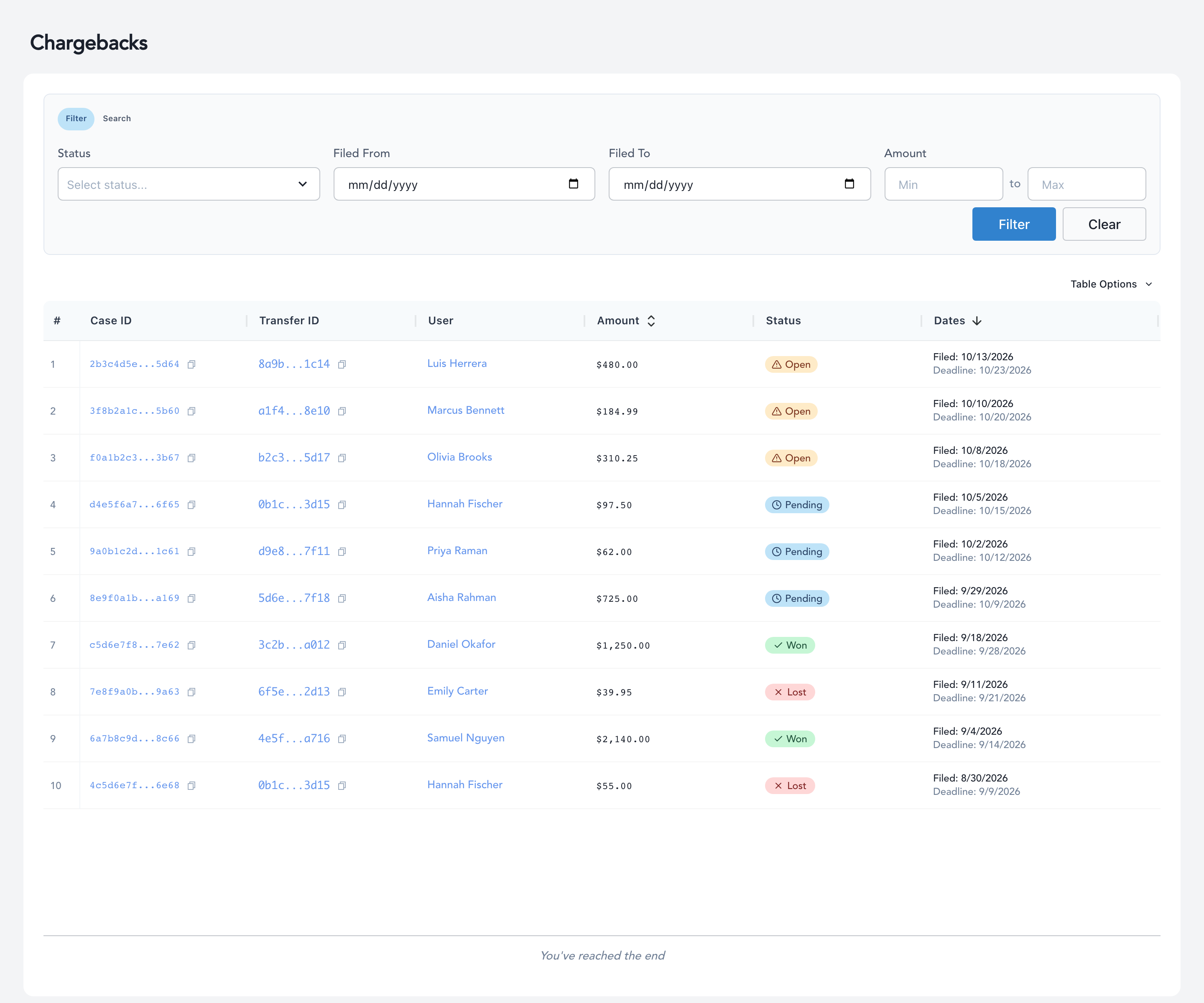
In the Astra Dashboard, go to Chargebacks. Each row shows the Case ID, Transfer ID, User, Amount, Status, and the Filed and Deadline dates. You can sort by Amount or Dates, and choose columns under Table Options.
Use the Filter tab to narrow the list:
Status: select one or more statuses (e.g. Won and Lost).
Filed From / Filed To: the date range the chargeback was filed.
Amount: a minimum and/or maximum dollar amount.
User conditions (Enriched Chargebacks only): find Users who match a rule, such as 5 or more chargebacks in the last 7 days.
Select Filter to apply, or Clear to reset.
Use the Search tab to look up a chargeback by its Case ID or Transfer ID. You can paste more than one ID at a time.
Tip: When you open a Transfer that has a chargeback, a Chargeback filed against this transfer banner appears at the top. Select View Chargeback Details to jump straight to the case.
Step 2: Review the Case
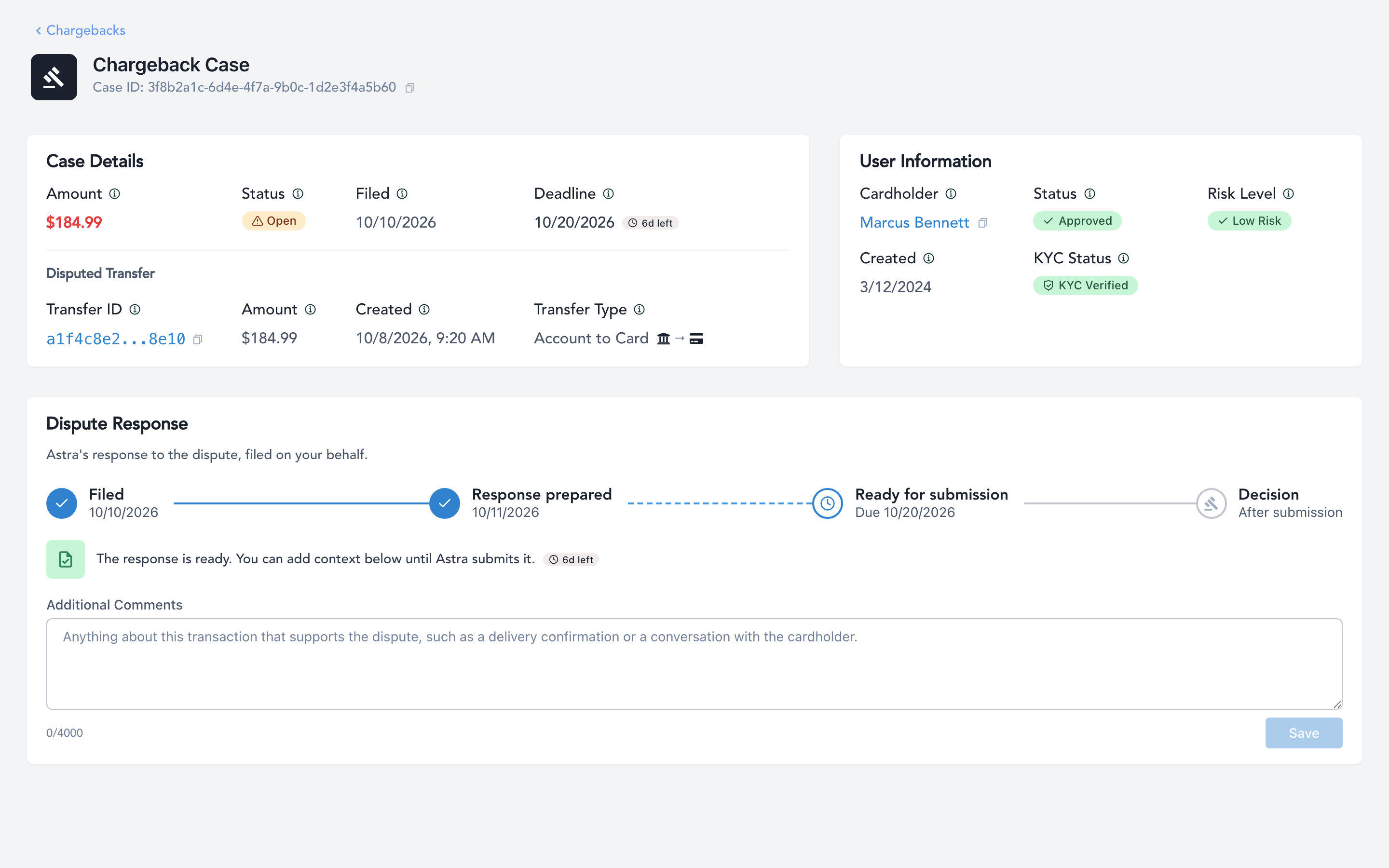
Select a Case ID to open the Chargeback Case page.
Section | What you'll see |
|---|---|
Case Details | Amount, Status, Filed date, and Deadline (with a countdown, e.g. 6d left) |
Disputed Transfer | Transfer ID, amount, created date, and transfer type (e.g. Account to Card) |
User Information | Cardholder name, User status, Risk Level, created date, and KYC status |
Dispute Response | A tracker showing where Astra's response stands |
The Dispute Response tracker moves through four stages:
Filed: the chargeback was received.
Response prepared: Astra has assembled its response from the data on file.
Ready for submission / Submitted: the response is ready, then sent to the card network on your behalf.
Decision: the card issuer rules on the dispute (Won or Lost).
Step 3: Add Context (Optional)
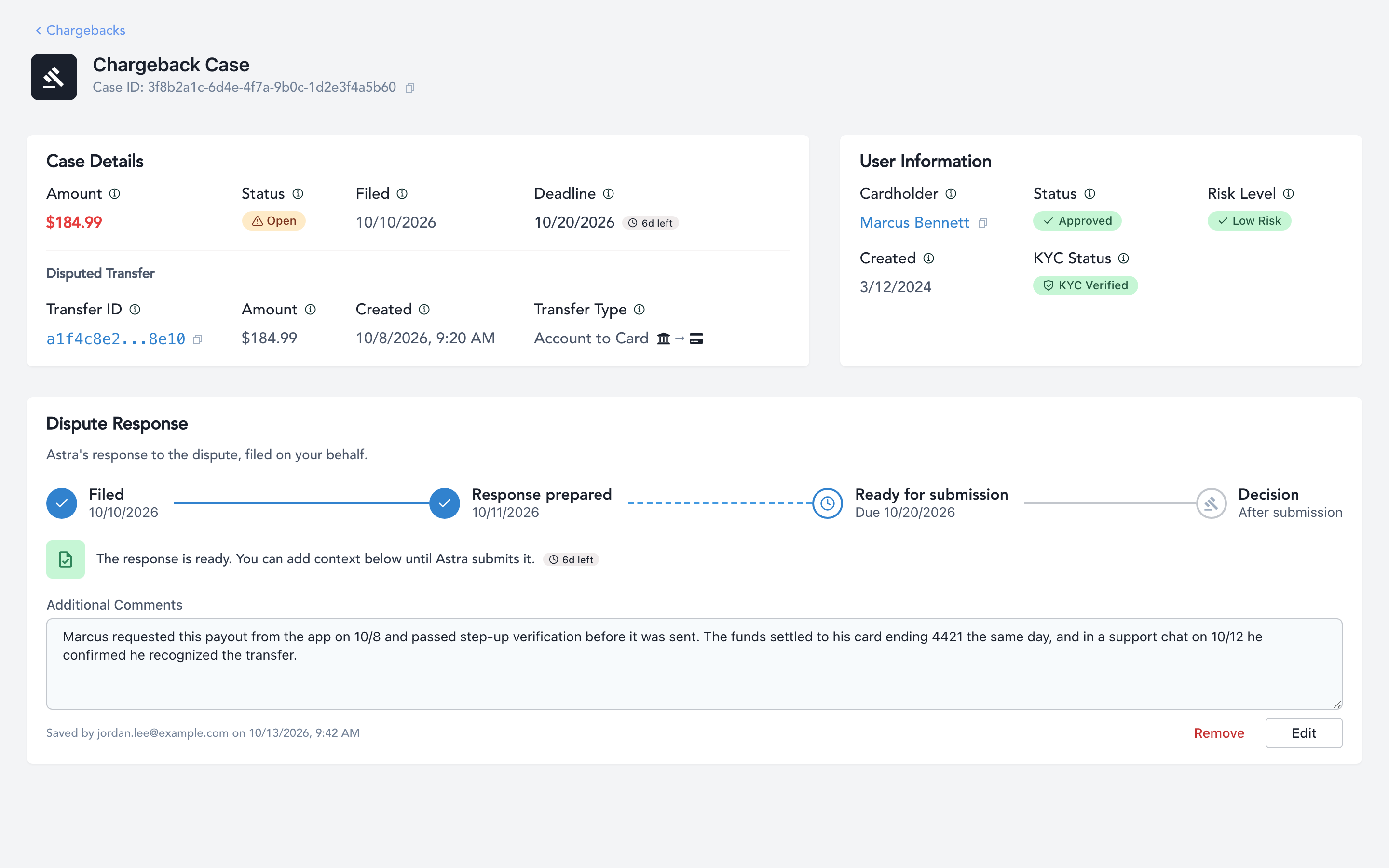
Once the response is ready, you'll see The response is ready. You can add context below until Astra submits it. Use the Additional Comments box to add anything about the transaction that supports the dispute.
Note: Only Dashboard users with the Owner or Admin role can add or edit context. Other team members can view the case, but not the comments box.
Enter your context (up to 15,000 characters).
Select Save. The comment shows who saved it and when.
Use Edit or Remove to change it, any time before Astra submits.
Best practices for writing context:
Leave out sensitive information. Never include full card numbers (PANs) or other sensitive data in clear text.
Keep it professional. Write clearly, and avoid negative or unprofessional language.
Be specific. Specific, dated facts make the strongest case.
Make it readable. Format your context so it’s easy for the person reviewing the dispute to follow.
Address the cardholder’s claim. Focus on facts that respond to the reason for the dispute. Information that’s off topic doesn’t help and can slow the review.
Tie it to the transaction. Reference the amount, the date, and the card’s last four digits so the reviewer can match your context to the dispute.
What to include:
For transfers made through an app or online account, Visa recommends evidence that links the activity to the cardholder, such as:
IP address and device ID
The cardholder’s name and email on the account
Login activity verified before the transaction, and app activity on or after it
Prior undisputed transactions that share details with this one, such as the same login, device, email, IP address, or phone number
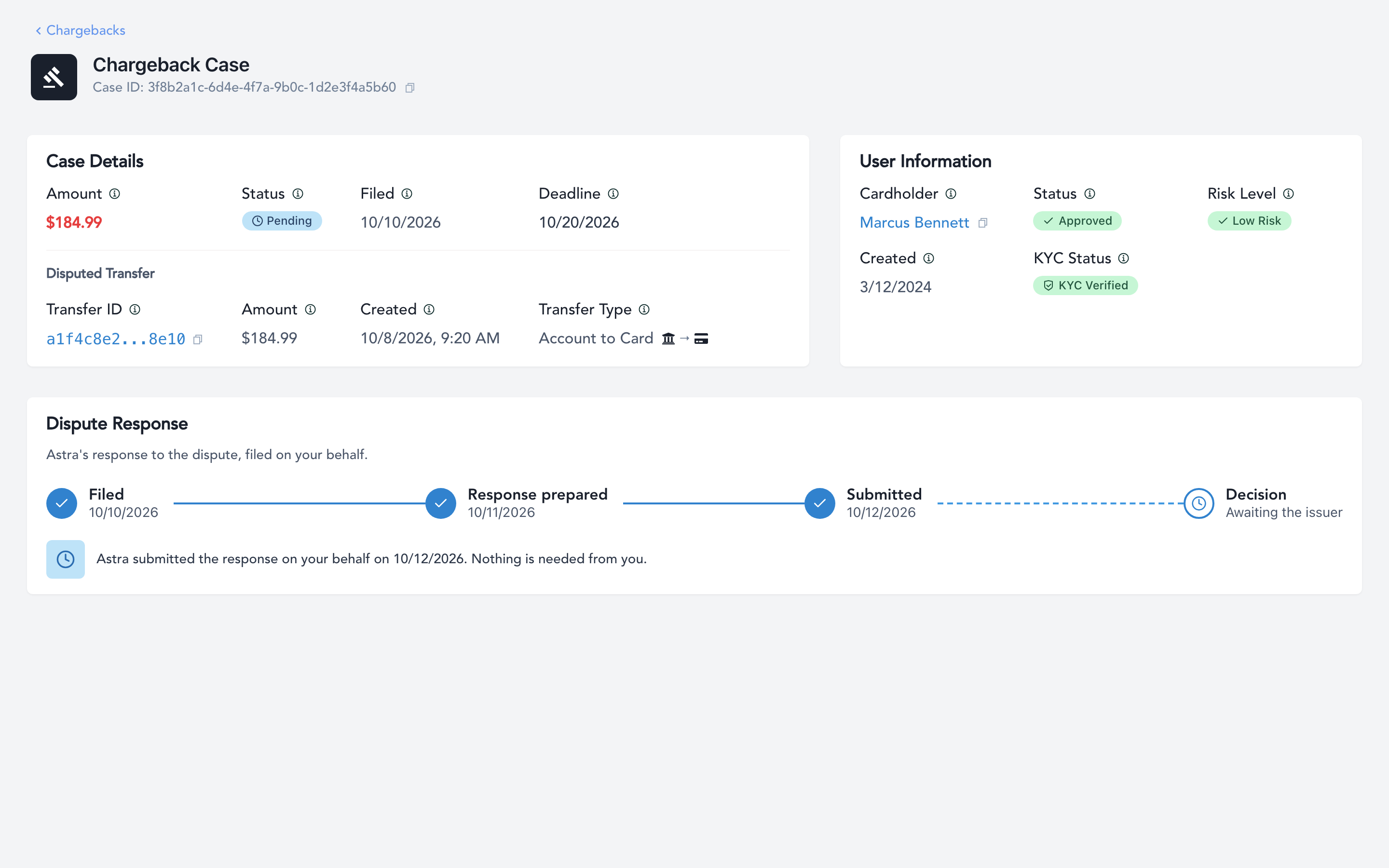
Context can only be added before submission. Once Astra submits the response, the case shows Astra submitted the response on your behalf. Nothing is needed from you. and comments can no longer be changed.
Chargeback Statuses
Status | Meaning |
|---|---|
Not Disputed | Astra has not yet submitted a response to this chargeback |
Open | Astra has submitted a response and is waiting on the card issuer's decision |
Won | The dispute was decided in your favor |
Lost | The dispute was decided against you |
Deciding Which Chargebacks to Enrich
You don't need to enrich every chargeback. The best practice is:
Decide which chargebacks are worth enriching, with a business process or an API automation.
Add context to those chargebacks in the Chargebacks portal (Step 3 above).
Submit the rest right away with the Submit a Chargeback Response endpoint.
Not using the API? Anything you don't add context to is submitted automatically by Astra on day 7. No action is needed on your part.
Automating the Decision with the API:
Listen for the chargeback_created. See Chargeback Webhooks.
Look up the Chargeback with Get a Specific Chargeback to check its amount, reason_code, and deadline_date.
Check the User's Chargeback history with Get a User's Chargebacks (more below).
Apply your rules. For example, enrich chargebacks over a certain amount, or for Users with several open chargebacks.
If you won't enrich it, submit it with Submit a Chargeback Response.
Get a User's Chargebacks:
Returns a User's open chargebacks filed within a date window, once they reach at least one threshold you set. Won and lost chargebacks aren't counted.
GET /v1/chargebacks/user
Parameter | Required | Description |
|---|---|---|
user_id | Yes | The ID of the User |
start_date / end_date | Yes | The filing date window, inclusive (YYYY-MM-DD) |
min_count | One of these three | Reached at this many open chargebacks in the window |
min_volume | One of these three | Reached when open chargebacks add up to this dollar amount |
min_case_amount | One of these three | Reached when any one open chargeback is at least this dollar amount |
Totals (total_count, total_volume, largest_case_amount) are always returned, so you can see how close a User is to a threshold.
The met array shows which thresholds were reached. The chargebacks themselves appear in results only once a threshold is met.
Amounts are in dollars (e.g. 25.00 is $25.00).
Note: All three Chargebacks endpoints authenticate with your client_id and client_secret (Basic Auth), not a User's access_token.
Submit a Chargeback Response
Use this endpoint if you decide not to enrich a chargeback. It sends Astra's prepared response to the card network immediately, using the data Astra has on file.
POST /v1/chargebacks/{chargeback_id}/submit
chargeback_id is the chargeback's chargeback_case_id.
No request body is needed.
The response returns the chargeback as it reads after submission, with status updated to open.
Why Submit Up Front?
If you don't submit a chargeback, you can keep adding context in the portal for up to 7 days after it's created. After that, Astra submits it automatically with the data on file. Submitting right away when you know you won’t add context gets the chargeback resolved faster, which closes out the liability you take on when it’s filed.
When Submission Isn't Possible:
Response | When it happens | What to do |
|---|---|---|
409 Conflict | The response isn't ready yet, was already submitted, or is past its deadline_date | Retrieve the chargeback with Get a Specific Chargeback to see its current state |
404 Not Found | The chargeback doesn't exist, doesn't belong to your application, or is a legacy chargeback | Check the ID. Legacy chargebacks (no chargeback_case_id) can't be submitted through this endpoint |
503 Service Unavailable | The Chargebacks service is temporarily unavailable | Try again shortly |
Legacy chargebacks: chargebacks recorded before chargeback cases were introduced have chargeback_case_id set to null. You can still look them up with Get a Specific Chargeback using the chargeback ID from the webhook, but you can't submit them through the API.
Submitting is final. Once submitted, you can no longer add or edit context in the portal for that chargeback.