Trusted Authentication
Last updated: October 15, 2026
Overview
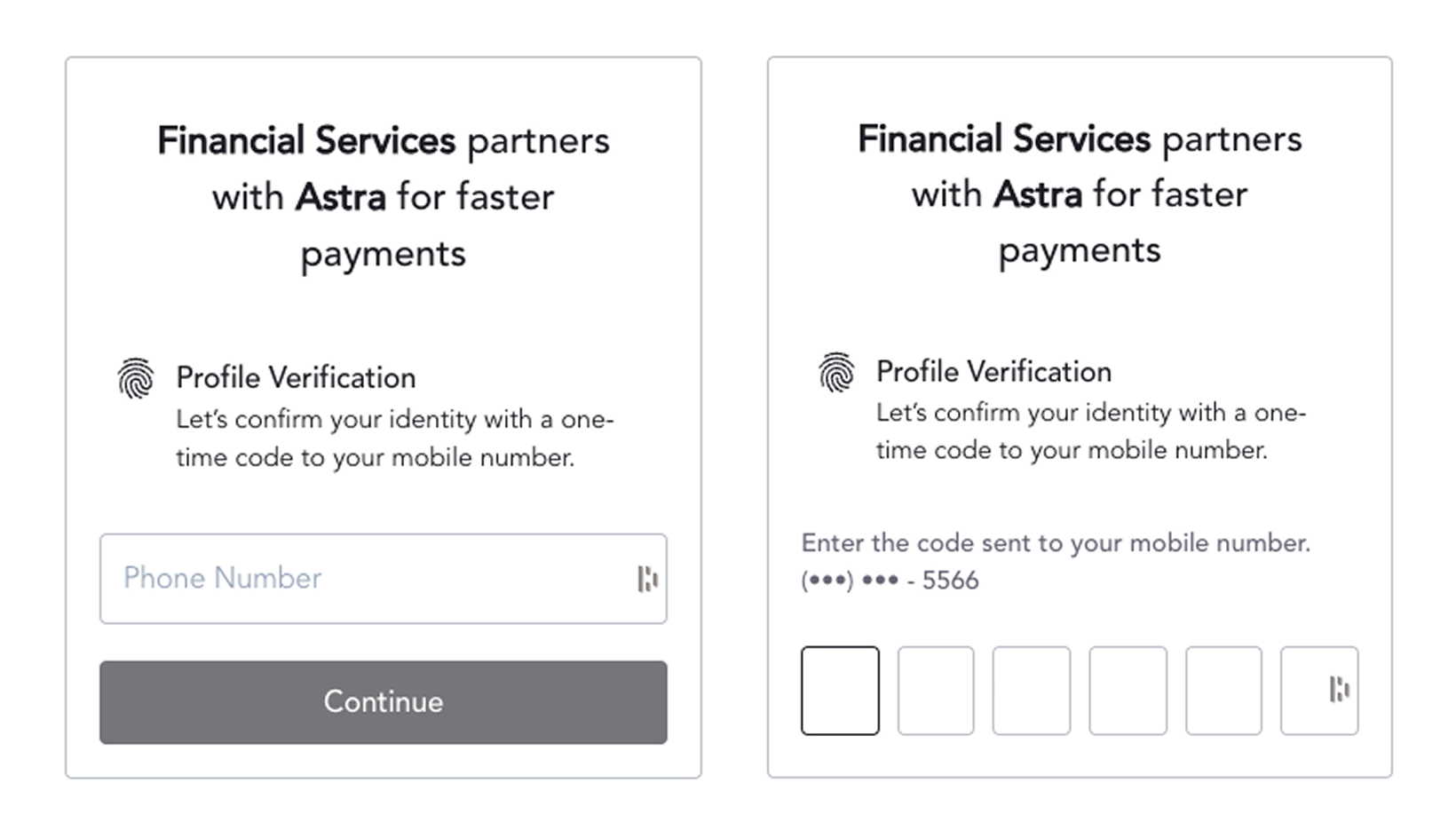
Authentication is the process of verifying the phone number associated with that User profile through an SMS code. This is how Astra Authenticates Users before they Authorize your Client. Any action by the User in Astra’s SDK requires an active, non-expired Authentication.
Re-Authentication is required when the User changes their phone number or is using Astra on a new device
Trusted Authentication is a joint solution developed by Astra for trusted Clients that enables access to Astra for all Users who have successfully completed mobile 2FA with a Client, providing a more streamlined onboarding experience. If a User has Authenticated with your Client in the last 30 days, Astra will “trust” this Authentication and allow the User to bypass the Authentication step prior to providing an Authorization for your Client.
Astra's Authentication Service
Approval
Trusted Authentication requires a level of trust between your company and Astra. In order to ensure a high level of security for all parties, Astra will require all trusted Clients to fill out an Authentication security questionnaire in JIRA. Here are some example questions:
Do you use phone number / mobile 2FA to authenticate your Users? If not, please share how.
What service do you use for mobile 2FA authentication?
When do you Authenticate Users? ex: During onboarding? When a phone number changes? When they add or change sensitive information?
When do you Re-authenticate Users?
How long does an authenticated User's session last? ex: 15 minutes, 24 hours, 1 week, 30 days
Trusted Authentication Flow
Step 1: Generating a Partner Identity Verification Token
The first step in Authenticating a User is generating a short-lived (5 minute), one-time-use Partner Identity Verification Token. In order to generate a token (session token) provide one of the following in the request payload: user_id, user_intent_id, or business_profile_id. Supply the user_intent_id or business_profile_id during initial onboarding, and provide the user_id for all requests moving forward post-onboarding.
Client Request
Endpoint: POST /v1/partner/identity/verification Headers: {
"Content-Type": "application/json", "Accept": "application/json", "Authorization": "Basic ****"
}
{
  // include one of user_id, user_intent_id, or business_profile_id in the request payload
  "user_id": "user_123456",
  "user_intent_id": "user_intent_123456",
  "business_profile_id": "busines_profile_123456"
}
Astra Response
{
"token": "token_123456"
}📘Only provide one of user_id, user_intent_id, or business_profile_id
📘 Provide a user_intent_id if you are signing up the User for Astra’s services (Authorizing)
📘 Provide a user_id if you are signing them in (Authenticating)
📘 Provide a business_profile_id if you are signing up a business user (Authorizing)
Step 2: Authenticating a User
Once your Client has a Partner Identity Verification Token, the User should be directed to the Astra Web SDK with the following query string parameters.
ParameterRequiredDescription | ||
session_token | required | the Partner Identity Verification Token string |
user_intent_id | required | required when initially onboarding a personal user |
business_profile_id | required | required when initially onboarding a business user. |
client_id | required | your Developer Client ID. |
user_id | optional | user_id used in the initial token creation request. |